


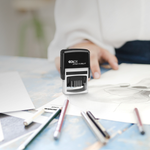
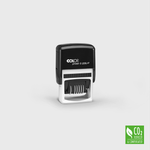
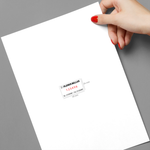
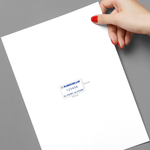
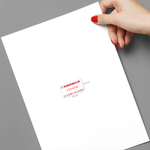
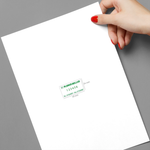
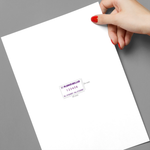

Organise documents with automatic numbering
Ideal for businesses needing sequential control
COLOP Numbering Stamps provide an efficient solution for numbering invoices, records, and other documents continuously. With space for up to three lines of text, this stamp adapts to various industries that require strict control and clear organisation.
- Automatic and self-inking stamp
- Rectangular format with sequential numbering
- Includes 3 text lines and 4 mm number height
- Available in 5 ink colours
- Brand: COLOP
Designs
The COLOP Numbering Stamp: control with precision
The COLOP Numbering Stamp is designed for administrative tasks that require numerical precision, such as records, inventories, or document processing. Perfect for demanding professional environments, it allows the inclusion of both numbers and text, becoming an essential tool for efficiency and organization.
Made with reduced environmental impact
COLOP stamps incorporate recycled materials and sustainable manufacturing processes. With energy sourced from solar panels and a commitment to reducing and offsetting CO₂ emissions, these numberers are a conscious choice for those who value environmental responsibility without compromising on quality.
Customize the COLOP Numbering Stamp with the Ask-to-Print Online Editor
Using our Online Editor, you can add your logo, text, or specific data to the numbering stamp, creating a unique product tailored to your needs. See real-time previews and ensure a professional marking that strengthens your brand identity in every use.
Buy COLOP Numbering Stamps quickly and at a low cost
Get your numbering stamp with the best balance between quality and price. This is an economical and effective solution for companies looking for professional and accessible tools. Order now from Ask-to-Print and enjoy fast delivery and durable products with consistent results.
Advantages of Automatic Date Stamps at Ask-to-Print
At Ask-to-Print, automatic date stamps offer a practical and efficient solution for those seeking speed, precision, and quality with every impression.
With an ergonomic design and easy customization, they are ideal for professionals and businesses looking to optimize processes in an economical and professional way.
Compact and Lightweight Design
Ask-to-Print’s automatic date stamps feature a modern, ergonomic design, perfect for those who need agility.
Built-in Ink Pad
The built-in ink pad makes the stamp easy to use and eliminates the need for external pads, making it more practical and always ready to use. The easy refill system with additional ink ensures your stamp is always ready without interruptions.
Precise Impressions
Thanks to the technology and materials used, our compact automatic date stamps deliver consistent and sharp impressions, perfect for any type of document or material. Each mark is precise, with no smudging or misprints.
Easy Customization with Ask-to-Print’s Online Editor
Ask-to-Print stamps are fully customizable with your logo, text, or signature, offering solutions that reinforce your brand identity in a practical and effective way.
Quality and Speed Within Reach
With Ask-to-Print, producing compact automatic date stamps is simple, fast, and affordable. We offer competitive prices and fast delivery, ensuring your custom stamp is ready in no time with the quality you expect.
Sustainable and Eco-Friendly Option with Reduced and Offset CO₂
From the development phase, we focus on resource conservation and the use of sustainable materials. The use of recycled plastics in the construction of Colop stamps is constantly optimized and expanded, and energy and raw materials are used as efficiently as possible.
The internal photovoltaic system generates a significant portion of the required electricity. Although CO₂ emissions are significantly reduced, the remaining emissions are offset through investments in climate protection projects, covering over 90% of all products in the COLOP range.
FAQs
Stamps
Yes. After selecting the type of stamp you want, you can create your design directly in the Ask-to-Print online editor. You have three practical options available:
- Select an existing template and adapt it with your information.
- Start from scratch using a blank design area.
- Upload a finalised design ready for production.
This flexibility allows you to create stamps with complete freedom — whether for branding, logos, digitised signatures, contact details or custom messages. The customisation process is simple, fast and includes a real-time preview before you confirm your order.
Yes. Before completing your order, you’ll be able to preview your stamp with the applied design in our online editor. This preview allows you to check details, correct any errors, and ensure that the final result matches your expectations.
Most self-inking or pocket stamps accommodate 2 to 3 lines of text, which is enough to include a name, job title, address, or contact details.
To ensure legibility:
- Use fonts with a minimum size of 8 pt (9 pt for decorative fonts)
- Maintain lines with at least 0.2 mm thickness
- Avoid too much text or elements placed too closely together
- Prefer simple fonts with strong contrast
Self-inking and pre-inked stamps work well on most common paper types, but they are not suitable for all surfaces. Below are compatible materials and those to avoid:
Work well on:
- Standard office paper (80 to 120 gsm)
- Recycled paper
- Matte or smooth-finish paper
- Standard envelopes and letterheads
- Uncoated paper labels
May cause issues on:
- Glossy or coated papers (photo, couché)
- Laminated or plastic-coated papers
- Highly porous papers (watercolour, handmade)
- Non-porous surfaces (plastic, glass, metal)
The ink used in Ask-to-Print stamps is not technically permanent, but it offers high resistance and is often considered indelible — meaning it does not fade or smear easily, even on frequently handled documents.
For those looking for an even more durable solution, COLOP 809 textile ink is an excellent option. This ink features quick drying, adheres effectively to fabrics and challenging surfaces, and behaves very similarly to permanent ink.
Our standard inks, such as COLOP 801 (water-based), are ideal for paper and certified documents. They are certified according to DIN ISO 14145-2, ensuring resistance, clarity and reliability for administrative, fiscal and professional use.
We also offer other specialised options:
- Invisible UV ink (COLOP 804): for discreet markings on paper or skin
- Premium FLASH EOS ink: developed for EOS stamps, offering high definition and controlled application
In summary: while not chemically permanent, our ink is indelible, providing durability, adhesion, and resistance for demanding professional and document-related applications.
Currently, Ask-to-Print stamps are only available in standard colours and sizes, ensuring consistent production and uniform print quality.
We offer five ink colours to choose from during the order process:
- Black
- Blue
- Red
- Green
- Purple
The ink colour must be selected at the time of purchase. If you wish to change it later, you will need to purchase a compatible ink bottle in the desired colour and a new replacement ink pad to ensure proper functionality and consistent print quality.
To ensure your stamp lasts longer:
Preservation: Store the stamp in a place protected from direct sunlight and high temperatures.
Cleaning: Wipe the surface with a slightly damp cloth or a product designed specifically for cleaning stamps.
Refilling:
- For self-inking stamps, add ink directly to the pad.
- For pre-inked stamps, replace the cartridge with a new one.
The structure can be made of durable plastic or metal, depending on the model. A high-quality technical rubber is used for the stamp surface, ensuring durability and printing precision.
Yes. Ask-to-Print stamps use COLOP 809 ink, specially developed for textile applications. This ink offers fast drying and excellent adhesion to less absorbent surfaces such as fabrics, ensuring a clear, durable, and high-resistance mark.
The COLOP 809 formula is designed to provide reliable performance even after multiple washes, maintaining the visibility of the imprint over time. It is the ideal solution for marking clothing, uniforms, workwear, or textile items that require permanent identification.
Specific ink for textiles (permanent/textile)
Formulated to adhere to fabric fibres.
Wash-resistant, typically up to 30–40 ºC.
Often requires 24 hours of drying or heat-setting with an iron (without steam) to ensure longer durability.
Avoid harsh detergents such as bleach.
Tips to ensure durability
Make sure the fabric is clean and dry before stamping.
Allow it to dry thoroughly before use or washing.
Wash inside out, preferably on gentle cycles.
Yes. You can purchase ink to refill your stamp from the Ask-to-Print online shop. The procedure depends on the type of stamp:
- Self-inking stamps: add ink directly to the ink pad.
- Pre-inked stamps: replace the cartridge with a new one.
We recommend keeping the original ink colour. Changing colours requires cleaning the stamp’s rubber plate to remove all traces of the previous ink. This process may affect the quality of the stamp. Any damage resulting from this procedure is not covered by the product’s quality guarantee.
The choice of the ideal stamp depends on usage frequency, content complexity, and application type. At Ask-to-Print, all stamps are automatic, meaning the ink is applied internally without the need for external pads. There are two main types, each with distinct features:
1. Self-inking stamps (with built-in ink pad)
These are the most practical and common. The ink is stored in an internal pad that reloads automatically after each use. They are available in two versions:
- Standard: ideal for occasional or daily office use, such as validations, addresses or contact details.
- Professional: designed for high-volume environments. Offer more stability, mechanical resistance, and comfortable continuous use. Perfect for admin departments, logistics, warehouses, and repetitive tasks.
2. Pre-inked stamps (high definition)
Pre-inked stamps have ink embedded directly in the stamp matrix, with no need for a pad. They are the best choice for maximum precision and sharpness, ideal for detailed logos, digital signatures or complex graphics. Offer superior print quality with fine lines, defined edges and stronger visual impact.
Here is a useful guide to help you decide how much text can be included using a 10 pt font size:
Small stamp: up to 3 lines of text
Medium stamp: up to 5 lines of text
Large stamp: up to 6 lines of text
Extra-large stamp: up to 10 lines of text
Please note that if you choose a font size larger than 10 pt, you may need to reduce the number of lines you can include. It all depends on the size you select and the amount of information you wish to add. For better readability, we recommend keeping the text concise.
The ideal stamp depends on usage volume, the complexity of the content to be stamped, and the type of application. At Ask-to-Print, all stamps are automatic, meaning the ink is applied internally without the need for external ink pads. There are two main groups with distinct functionalities:
1. Self-inking stamps (with built-in ink pad)
These are the most practical and common stamps. The ink is stored in an internal pad that automatically re-inks after each use. Available in two versions:
Standard: ideal for occasional or daily use in office environments, such as validations, addresses, or contact details.
Professional: designed for high-volume use in demanding environments. They offer greater stability, mechanical resistance, and user comfort. Perfect for administrative departments, logistics, warehouses, and repetitive services.
2. Pre-inked stamps (high definition)
Pre-inked stamps have the ink embedded directly into the stamp surface, eliminating the need for a pad. They are the best choice when maximum sharpness and precision are required, especially for detailed logos, digitised signatures, or complex graphic elements. The print quality is superior, with fine lines, sharp edges, and strong visual impact.
The ideal stamp depends on how frequently it will be used, the level of detail required, and the type of surface. At Ask-to-Print, we offer three main categories:
1. Standard self-inking stamps
Perfect for regular use in office environments, such as document validation, tax data, or administrative stamping. These models include a built-in ink pad and are easy to carry, refill, and use. A practical, cost-effective solution for everyday tasks.
2. Professional self-inking stamps
Recommended for high-volume use or when a more durable tool is needed. These stamps feature reinforced structures and robust mechanisms, ensuring greater stability, durability, and comfort during continuous use. Suitable for logistics, warehouses, or busy administrative departments. You’ll find these in our professional stamp category.
3. High-definition stamps - Premium
Designed to reproduce complex graphics, detailed logos, digitised signatures, or precise visual elements. These pre-inked stamps deliver extreme sharpness and are ideal for brands that value visual detail and consistent graphic identity. Discover them in our premium stamp category.
Printing and Production
Na Ask-to-Print, a verificação do ficheiro depende da opção selecionada no momento da encomenda. Pode escolher entre três níveis de validação, consoante o tipo de apoio que pretende antes de avançar para impressão.
Não Verificar Ficheiro
Ao selecionar esta opção, confirma que o ficheiro enviado está correto, finalizado e pronto para impressão. Neste caso, o ficheiro segue diretamente para produção, sem qualquer verificação técnica prévia. Esta opção não tem custos adicionais.
Verificar Ficheiro
Ao selecionar esta opção, o seu ficheiro será analisado por um profissional antes de seguir para impressão. Se forem identificados erros ou inconformidades, será contactado antes de avançarmos com a produção. Esta opção tem um custo associado.
Verificar e Corrigir
Ao selecionar esta opção, o seu ficheiro será analisado por um profissional antes da impressão. Se forem detetados erros ou inconformidades passíveis de correção técnica, estes serão ajustados antes de o ficheiro seguir para produção. Esta opção tem um custo associado.
Que tipos de erros podem ser verificados?
A verificação pode abranger, entre outros aspetos técnicos, situações como:
- resolução insuficiente de imagens;
- dimensões incorretas do ficheiro;
- ausência de margens de segurança;
- falta de sangramento, bleed ou margem de corte;
- textos ou elementos demasiado próximos da linha de corte;
- utilização de modo de cor incorreto;
- fontes não convertidas em contornos ou não incorporadas;
- elementos em falta ou mal posicionados;
- páginas trocadas ou orientação incorreta;
- linhas de corte, marcas ou outros elementos técnicos indevidos na arte-final.
A análise incide sobretudo sobre a preparação técnica do ficheiro para impressão. Sempre que necessário, e de acordo com a opção escolhida, o cliente será informado ou o ficheiro será corrigido antes da produção.
Importa ainda referir que o serviço de correção não deve ser entendido como um serviço de design gráfico, reformulação criativa ou reconstrução de elementos da arte-final.
At Ask-to-Print, we accept various file formats to ensure the best customization and production experience. However, not all formats offer the same features in the design checking and adjustment process.
See below for file type details:
Files with Preview and Editable Options (recommended and preferred)
- .pdf (Adobe Acrobat)
- .png (PNG Image)
- .jpeg / .jpg (JPEG Image)
- .tiff (TIFF Image)
- .svg (Vector Graphic)
Files with Preview, No Editing Options
- .ai (Adobe Illustrator)
- .eps (PostScript)
- .gif (GIF Image)
Accepted Files, No Preview or Editing Options
- .psd (Adobe Photoshop)
- .cdr (CorelDRAW)
Files Not Accepted by the Platform
- .ppt (Microsoft PowerPoint)
- .doc (Microsoft Word)
- .bmp (Bitmap Image)
Still have questions?
If you're unsure about the correct format or are having trouble uploading your file, our Customer Support team is here to help. Don’t hesitate to contact us — we’ll be happy to assist and ensure your order runs smoothly.
To contact us click here!
Yes. The PDF/X-1a format is accepted by Ask-to-Print and is one of the most recommended options for finalised files. This format ensures that your design is reproduced accurately, preserving embedded fonts, CMYK colours and removing transparencies that may cause printing issues. If your file is production-ready, PDF/X-1a is an excellent choice.
Does Ask-to-Print recommend the PDF/X-1a format?
We strongly recommend using PDF/X-1a whenever uploading a finalised file, especially for technically demanding products such as business cards, flyers or catalogues. This format offers greater compatibility with our production systems and reduces the chance of errors related to fonts, colours or bleed margins.
When should I use the PDF/X-1a format?
PDF/X-1a is ideal for files that require no further editing and are ready for print. If you created your design in software like Adobe Illustrator, InDesign or CorelDRAW and want to preserve the exact layout, this is the safest format. It's especially useful for designs with pure CMYK colours, high-resolution images and where final alignment is crucial.
Does PDF/X-1a guarantee better print quality?
More than quality, PDF/X-1a guarantees consistency and reliability. It prevents issues like font substitution, incorrect colour profiles or unhandled transparencies. The visual quality also depends on resolution and layout, but this format ensures what you see on screen is what gets printed — no surprises.
How can I generate a PDF/X-1a file?
You can generate a PDF/X-1a from programs like Adobe Illustrator, InDesign, Photoshop or CorelDRAW. Just select “Save as PDF” and choose the PDF/X-1a:2001 preset. Make sure to use CMYK colour mode, include 3 mm bleed and convert text to outlines. You can also download our pre-configured templates to simplify the process.
What are the advantages of sending a file in PDF/X-1a?
Better print safety; Preserves fonts, images and colours; Reduces technical error risks; Compatible with prepress systems; Prevents layout surprises. By choosing this format, you're ensuring your file meets best practices in the graphic arts industry.
Yes, you can view a proof before printing.
If you use our online editor, you’ll get instant access to a real-time preview of your design, accurately simulating the final result.
If you choose to upload your design or final artwork, you will also be able to preview the job before production — as long as the file is in one of the following formats compatible with digital proofing:
- PDF: Standard format for design previews.
- JPEG and JPG: Image format
- PNG
- GIF: Supported in the proofing process, allowing visual validation before printing.
- Tiff
- AI
- SVG
We accept many other formats, but only these allow automatic job preview generation.
Production Files
A low-resolution file may result in pixelation, lack of sharpness, irregular edges and loss of detail in the final product.
Resolution should always be assessed at the actual production size. Artificially enlarging a small image does not restore the original detail and may further reduce image quality.
Whenever possible, use high-resolution images or vector graphics. Take particular care with images downloaded from the Internet, as they are often optimised for screens and may not have sufficient resolution for graphic production.
When creating a design using very specific fonts or fonts that may not be available in our system, those fonts may be automatically replaced with standard fonts, which can significantly alter the appearance of your printed material.
How does this happen?
If the font used in your design is not embedded in the file or is not a common font recognized by our system, the print software will attempt to replace it with a similar one. However, this substitution may cause your design to lose its original appearance, affecting spacing, formatting and layout.
How to avoid this issue?
To ensure your design prints exactly as intended, follow these steps:
- Embed fonts in the final file: Make sure all fonts used in your project are properly embedded in the design file. This can be done when exporting the file from your design software (such as Illustrator, InDesign, Corel Draw, or others).
- Convert text to outlines: If you can’t embed the fonts, an alternative is to convert the text to outlines (or paths). This transforms the text into vector shapes, eliminating the need for external fonts. Note: This option is not recommended for products like Books, Magazines or Catalogues, as outlined text cannot be edited later.
- Check fonts and images in your file: Graphic design software such as Illustrator offers tools to ensure everything is correct before sending your file to print. One way to do this is to generate a final report that lists all fonts used and includes details about images, such as whether they are in CMYK or RGB mode (remember that for printing, images must be in CMYK).
- To generate the report in Illustrator:
- Go to the “File” menu >“Package”.
- In the Package options panel, check the boxes to include fonts and images.
- Illustrator will create a folder with all your project files, including embedded fonts, images (with CMYK or RGB info), and other essential details.
- To generate the report in Illustrator:
- Use the Illustrator Package feature: This is ideal to ensure that all resources required for your project are properly delivered. The Package generates a folder containing all design elements (fonts, images, colours, and more), making it easier to review everything.
Summary
To avoid font issues and ensure your design prints exactly as intended, embed fonts or convert them to outlines.
Embedding fonts in a PDF is essential to ensure the file is viewed and printed correctly on devices that may not have the same fonts installed. This practice is especially important in web-to-print environments, where files are prepared by end users and sent directly to print production.
What does embedding fonts mean?
When you embed fonts in a PDF file, the font data is included directly within the document. This preserves the text’s appearance, even if the PDF is opened on different computers, using different systems or without the original fonts installed.
How to embed fonts – General Steps
Adobe InDesign, Illustrator and Photoshop
- Go to File > Export and choose the Adobe PDF format.
- Access the Advanced tab.
- Enable the option Embed All Fonts or Subset fonts below 100%.
- Select a profile like PDF/X-1a or PDF/X-4, suitable for professional printing.
CorelDRAW
- Go to File > Export > PDF.
- In the Advanced tab, select Embed All Fonts.
Other programs (Affinity Designer, Canva, Inkscape, GIMP, etc.)
- Most export to PDF with fonts embedded by default.
- Always check export options for terms like "embed fonts" or "PDF/X compliance".
Best Practices for Web-to-Print
- Converting text to outlines is a safe option if the file doesn’t need further editing.
- Only use licensed fonts to avoid embedding restrictions.
- Avoid online fonts from cloud editors that don’t allow embedding.
Arte-Final - Carimbos
One of the best ways to create your design is to use the Ask-to-Print online editor.
- Alternatively, submit a vector PDF with all text converted to outlines. The document must match the exact dimensions of the stamp you are purchasing, with the entire design contained within the template.
- No bleed or safety margin is required.
- If you choose to use an image, we recommend a resolution of 600 dpi at the final stamp size.


